

Last updated: July 9, 2026
Roughly 112,000 extensions live in the Chrome Web Store right now, down almost 19% from the 2020 peak of 137,345. Google keeps trimming the store, yet 17% of new extensions built in the past year already use AI, and AI-powered extensions alone racked up 115.5 million downloads. Translation: the store is getting smaller and pickier, but the appetite for smart, useful browser tools has never been higher.
That combination is exactly why Chrome extension development deserves a second look if you run a business, sell a service, or manage a small team. A well-built extension sits right inside your customer’s browser toolbar, quietly doing one job well: pulling data, automating a task, or giving your brand daily visibility without an app download or a login screen.
Quick Answer
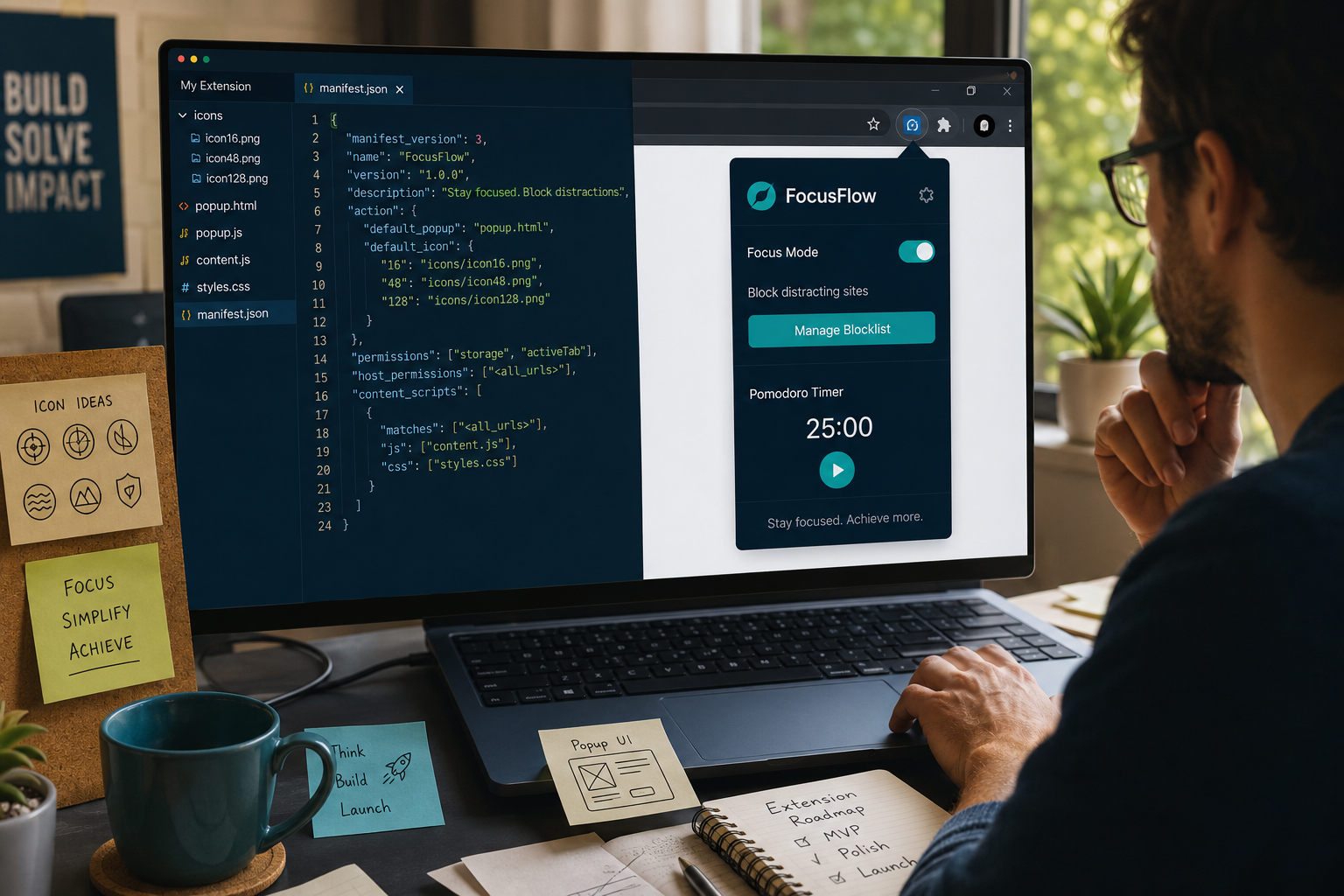
Chrome extension development means writing a small package of HTML, CSS, and JavaScript files (defined by a manifest.json file) that Chrome loads into the browser to add a feature, automate a task, or display information. For a business, the fastest path is to define one specific problem an extension solves, build a minimum version with Manifest V3 (required since it’s now the only supported format), test it locally, and then publish it through the Chrome Web Store developer dashboard.
Key Takeaways
- A Chrome extension is a lightweight software package that runs inside the browser and can read pages, show popups, or automate clicks, it is not a full website or app.
- Manifest V2 extensions stop working entirely after August 31, 2026, since Google is removing them from the store and blocking updates and reinstalls.
- You do not need to be a professional developer to build a basic extension, but you do need someone who understands HTML, CSS, and JavaScript, or a no-code/AI-assisted builder.
- Costs range from $0 (DIY with free tools) to $3,000,$15,000+ for a custom-built, professionally designed extension with backend integration.
- A simple extension can be built in a weekend; a polished, store-ready business tool typically takes 2-6 weeks.
- Google now enforces stricter data-privacy rules (effective July 2026), limiting extensions to collecting only what’s necessary for the feature to work.
- Chrome, Firefox, and Edge extensions share a lot of code, but each store has its own review process and small API differences.
- Security matters more than ever: over 100 malicious extensions were caught stealing user data in April 2026 alone, so permission requests need to be minimal and justified.
What is a Chrome extension and how does it work?
A Chrome extension is a small program made of web files (HTML, CSS, JavaScript) plus a configuration file called manifest.json that tells Chrome what the extension is allowed to do. It works by attaching itself to the browser and running scripts when a page loads, when a user clicks the toolbar icon, or in the background on a schedule.
Every extension is built from a few core pieces:
- manifest.json, the blueprint. It declares the extension’s name, version, permissions, and which files run where.
- Background service worker, runs behind the scenes, listening for events like a new tab opening or an alarm firing.
- Content scripts are JavaScript that runs directly on a webpage, allowing the extension to read or change what’s on screen (for example, highlighting prices or extracting contact info).
- Popup or side panel, the small window that appears when someone clicks the toolbar icon, usually built with plain HTML/CSS.
- Options page, a settings screen where users customize behavior.
Example: A price-tracking extension for an e-commerce business might use a content script to read the price on a product page, a background worker to check it daily, and a popup to show price history.
How do I build a Chrome extension from scratch?
Building a Chrome extension from scratch means creating a folder with a manifest file and the supporting HTML/CSS/JavaScript files, then loading that folder into Chrome as an “unpacked” extension for testing. Once it works locally, you package and submit it to the Chrome Web Store.
Here’s the practical checklist:
- Define the single job. Pick one clear problem: save leads to a spreadsheet, summarize a webpage, auto-fill a form, or track competitor prices.
- Sketch the user flow. Where does the user click? What do they see? Keep it to one or two screens.
- Create the manifest.json file using Manifest V3 syntax (the only version Chrome now accepts).
- Build the popup or side panel with basic HTML and CSS.
- Write the logic in JavaScript, this is the content script or background service worker that does the actual work.
- Load it unpacked in
chrome://extensionswith Developer Mode turned on, and click around to test it. - Fix bugs, then package the folder into a .zip file for submission.
If writing raw JavaScript feels intimidating, platforms built specifically for non-technical founders can generate the extension structure for you based on a description of what you want it to do. Extension Architect is one example built around this idea: describe the tool you want, and it handles the manifest, permissions, and boilerplate code so you can focus on what the extension actually does for your customers.
“The hardest part of Chrome extension development isn’t the code, it’s deciding on the one job your tool should do really well.”
What programming languages do I need to know for Chrome extensions?
You need working knowledge of HTML, CSS, and JavaScript to build a traditional Chrome extension, there’s no separate “extension language.” JavaScript does the heavy lifting; HTML and CSS just build the popup or options screen.
A quick breakdown of what each language handles:
| Language | What it does in an extension | Skill level needed |
|---|---|---|
| HTML | Structures the popup, options page, and side panel | Beginner |
| CSS | Styles buttons, layout, colors, fonts | Beginner |
| JavaScript | Handles logic, reads webpage data, talks to APIs | Intermediate |
| JSON | Writes the manifest.json configuration file | Beginner (syntax only) |
Choose the DIY coding route if: you already know basic JavaScript or are willing to learn it, and your extension idea is simple (a bookmarklet-style tool, a form filler, a note-taker).
Choose a no-code or AI-assisted builder if: you have zero coding background, need something functional fast, and are willing to describe your idea in plain language instead of writing syntax yourself.
How much does it cost to develop a Chrome extension?
Costs for Chrome extension development range from free (if you build it yourself with free tools) to $15,000 or more for a custom, feature-rich extension built by a development agency. Most small-business tools with a single clear function fall in the $500 to $5,000 range when outsourced.
| Approach | Typical cost | Best for |
|---|---|---|
| DIY with free tutorials | $0 (your time only) | Simple tools, learning projects |
| AI-assisted / no-code builder | $0,$300/month | Solopreneurs, non-technical founders |
| Freelance developer | $1,500,$8,000 | Businesses needing a custom, one-off tool |
| Development agency | $5,000,$25,000+ | Complex tools with backend/API integration |
Hidden costs to budget for: the one-time $5 Chrome Web Store developer registration fee, ongoing hosting if your extension calls an external API or database, and time spent on updates to stay compliant with Google’s evolving privacy rules.
If you’re weighing whether to build in-house or hire out, it helps to compare against other software investments your business already makes; the same logic used when picking essential tools for an online business applies here: pick the option that saves the most time relative to its cost.
Chrome extension vs. Firefox add-on vs. Edge extension: what’s different?
Chrome, Firefox, and Edge extensions share around 80-90% of their code because Firefox and Edge both support the WebExtensions API, which is closely modeled on Chrome’s system. The main differences are in the store review process, some API naming, and how strictly each browser enforces Manifest V3.
| Feature | Chrome | Edge | Firefox |
|---|---|---|---|
| Manifest version | V3 only (V2 removed) [1][8] | V3 (Chromium-based, mirrors Chrome) | V3 supported, V2 still allowed longer |
| Store name | Chrome Web Store | Microsoft Edge Add-ons | Firefox Add-ons (AMO) |
| Review speed | Days to weeks | Similar to Chrome | Often faster, smaller store |
| Code compatibility | Baseline | ~95% identical to Chrome | ~85% compatible, minor API tweaks |
Decision rule: if your business tool needs to reach the widest audience with the least extra work, build for Chrome first using Manifest V3, then port the same code to Edge (almost no changes needed) and Firefox (expect a few small adjustments to background scripts).
How do I publish my Chrome extension to the Web Store?
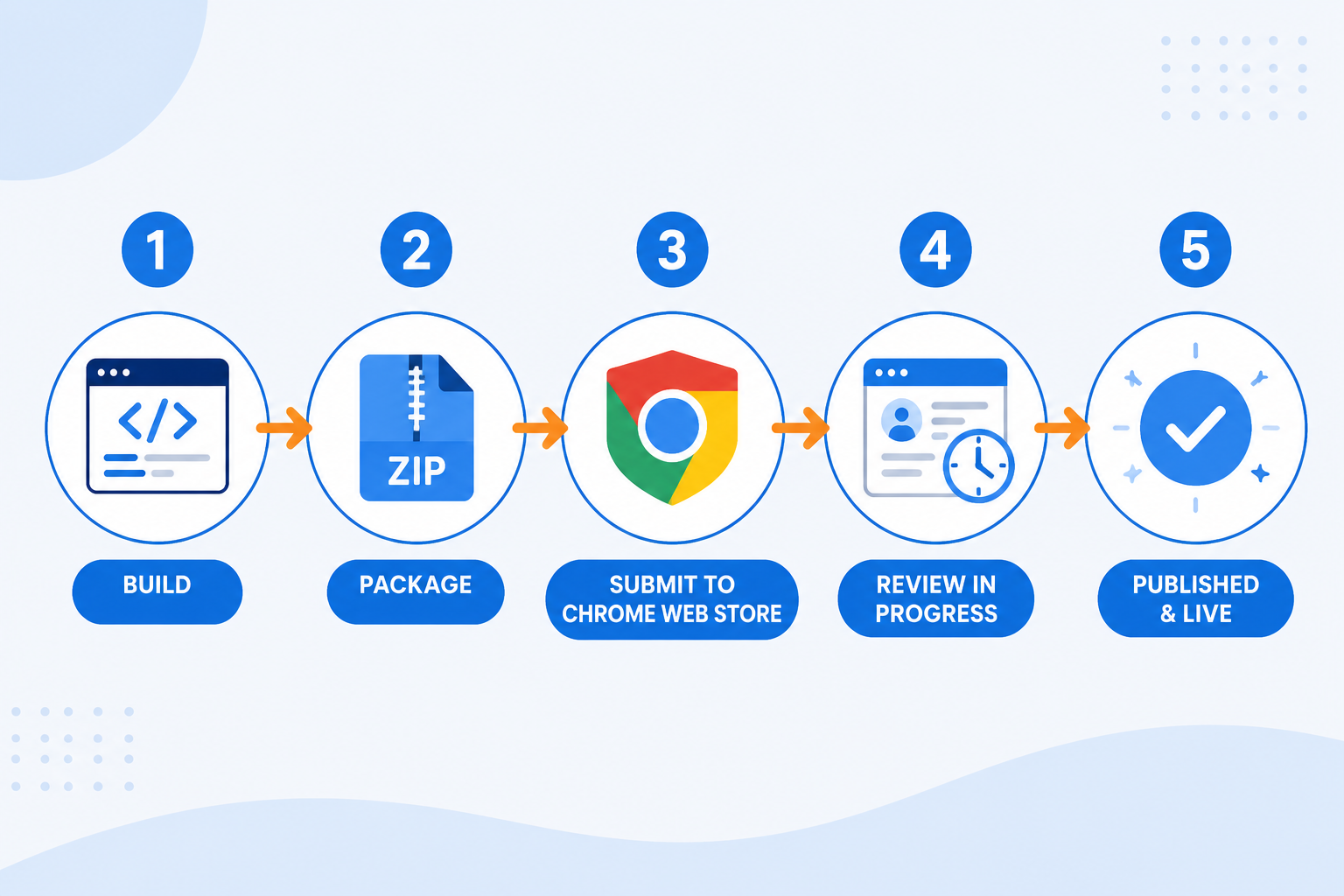
You publish a Chrome extension by creating a developer account, paying the one-time $5 registration fee, uploading a zipped version of your extension, filling out a store listing, and submitting it for Google’s review. Approval can take anywhere from a few hours to a couple of weeks depending on the permissions requested.
Step-by-step:
- Register at the Chrome Web Store Developer Dashboard and pay the $5 fee.
- Zip your extension folder (excluding unnecessary files like
.git). - Upload the zip and fill in the listing: name, description, screenshots, category.
- Declare every permission your extension uses and explain why, since vague or excessive permissions are a top reason for rejection.
- Submit for review.
- Once approved, your extension goes live and becomes searchable in the store.
Common mistake: requesting broad permissions, such as “read and change all your data on all websites,” when the extension only needs access to one type of page. This slows review and scares off cautious users. Ask for the narrowest permission that still lets the feature work.
What are common mistakes when building Chrome extensions?
The most common mistake is building a feature-heavy extension instead of a focused one, trying to do five things instead of one thing extremely well. Overly broad permissions, ignoring Manifest V3 requirements, and skipping real-device testing round out the top offenders.
Watch out for these:
- Scope creep, adding features nobody asked for before shipping the core function.
- Ignoring the Manifest V2 shutdown; any extension still built on V2 will be pulled from the store and stop updating after August 31, 2026.
- Over-permissioning: requesting access to all sites when only one domain is needed.
- Skipping user testing: a popup that looks fine on your monitor can break on smaller screens or different zoom levels.
- No error handling: if a webpage layout changes, a poorly built content script can just fail silently instead of alerting the user.
- Copy-pasted remote scripts, pulling in JavaScript from external, unverified sources, which researchers have flagged as a real vulnerability source in extensions.
How do I debug and test a Chrome extension?
You debug a Chrome extension using Chrome’s built-in DevTools, the chrome://extensions page’s “Errors” button, and manual click-through testing across different websites and screen sizes. Most bugs show up in the console log the moment you interact with the extension.
Practical debugging workflow:
- Load the extension unpacked and open
chrome://extensions. - Click “Errors” on your extension’s card to see any manifest or runtime issues.
- Right-click the popup and choose “Inspect” to open DevTools scoped to that popup.
- Check the Console tab for JavaScript errors as you interact with the tool.
- Test the content script directly on the target webpage’s console.
- Test on at least two different sites (or page types) if your extension is meant to work broadly.
- Reload the extension after every code change (
chrome://extensionshas a refresh icon per extension).
Edge case to test for: what happens if the webpage the extension expects to modify has changed its layout, or if the user has no internet connection when the extension tries to reach an API? Build a graceful fallback message instead of letting the tool fail with no explanation.
Chrome extension development tools and best practices
The right toolkit for Chrome extension development includes Chrome DevTools for debugging, a code editor like VS Code, and Google’s official documentation for manifest and API references. Best practice is to build small, test often, and request only the permissions your feature truly needs.
Recommended tools:
- VS Code (free), the standard code editor, with extensions for JSON and JavaScript linting.
- Chrome DevTools (built-in), inspect, debug, and profile performance.
- Chrome Web Store Developer Dashboard, manage listings, view install stats, respond to reviews.
- AI-assisted builders like Extension Architect, useful for non-technical founders who want to describe a business idea in plain language and get working extension code without learning JavaScript first.
Best practices worth following every time:
- Start with the smallest version that solves the problem, then iterate based on real user feedback.
- Keep permissions minimal and explain them clearly in your store listing.
- Build with Manifest V3 from day one; there’s no reason to build on a format Google is actively phasing out.
- Version your code (even a simple changelog file helps) so you can track what changed between updates.
- Test on a fresh Chrome profile occasionally to catch conflicts with other installed extensions.
If your business already relies on a stack of digital tools, it’s worth reviewing how a new extension fits alongside what you use; see this roundup of amazing business tools for growth for context on where a browser extension fits within a broader toolkit.
Can I make money from a Chrome extension?
Yes, businesses monetize Chrome extensions through subscriptions, one-time purchases, affiliate integrations, lead generation, or by using the extension as a free tool that funnels users to a paid product. The right model depends on whether the extension itself is the product or just a marketing channel for something else.
Common monetization paths:
- Freemium SaaS model, free basic features, paid tier unlocks advanced functionality (common for productivity and research tools).
- Lead magnet, free extension that captures emails or usage data to nurture leads into a paid offer, similar to strategies covered in guides on creating lead magnets that convert.
- Affiliate or referral fees: extensions that recommend products (like coupon finders) earning commission on purchases.
- Internal tool with external value: a business builds an extension to solve its own workflow problem, then licenses it to similar businesses.
Choose the freemium model if your extension does something people use daily, and there’s a clear “advanced” version worth paying for. Choose the lead-magnet model if the extension’s real job is to build your email list or to demonstrate expertise, similar to tactics used in broader content marketing with AI tools.
How long does it take to build a Chrome extension?
A simple Chrome extension with one core feature can be built and tested in a few days to two weeks. A polished, business-ready tool with a designed interface, backend integration, and store-listing assets typically takes two to six weeks.
| Extension type | Estimated build time |
|---|---|
| Basic utility (form filler, note saver) | 3-7 days |
| Business tool with popup UI + basic logic | 1-3 weeks |
| Tool with API/backend integration | 3-6 weeks |
| AI-powered extension with custom model calls | 4-8 weeks |
Quick example: a real estate agent wanting a simple extension that saves listing links to a Google Sheet could realistically have a working version in under a week using an AI-assisted builder, versus several weeks hiring a freelance developer for the same scope.
What are the limitations of Chrome extensions?

Chrome extensions are limited by the permissions model, browser-only reach (no mobile app equivalent without separate development), and Google’s increasingly strict review and privacy policies. They also cannot run heavy background processing indefinitely, since Manifest V3 restricts long-running background scripts for performance and battery reasons.
Key limitations to plan around:
- No persistent background processes: Manifest V3’s service workers can be shut down by Chrome when idle, so extensions that require constant background activity require a different architecture.
- Browser-only: an extension only works on devices where Chrome (or a Chromium-based browser) is installed; it won’t reach mobile users using a native app.
- Store dependency: Google can remove or reject an extension for policy violations, and the store has been actively pruning inactive or non-compliant listings, shrinking the total count by 18.5% since 2020.
- User trust friction: many users are cautious after high-profile incidents, including a case in which an extension used by about 7,000 users was hijacked to steal cryptocurrency wallets. A clean privacy policy and minimal permissions help offset this hesitation.
Do I need coding experience to create a Chrome extension?
No, coding experience is not strictly required to create a basic Chrome extension today, thanks to AI-assisted and no-code builders, but understanding what HTML, CSS, and JavaScript do will help you troubleshoot issues and communicate clearly with any developer you hire.
Choose the no-code/AI route if: you want to launch fast, your idea is a single clear feature, and you’re comfortable letting a tool generate the underlying code. Choose to learn basic JavaScript yourself if: you plan to build multiple extensions over time, want full control over functionality, or your idea involves complex logic that’s hard to describe in plain language.
Either way, treat your first extension like a minimum viable product: something you’d test with a handful of real users from your own network, the same “start small, validate fast” thinking behind starting an online business step by step.
How do I add permissions to my Chrome extension safely?
Add permissions to a Chrome extension by declaring only the specific permissions your feature actually needs inside manifest.json, and always explain to users why each permission is requested. Google’s stricter July 2026 privacy rules now limit extensions to collecting only data necessary for the extension’s stated functionality.
Safe permission practices:
- Request host permissions for specific domains (
https://example.com/*) instead of all URLs whenever possible. - Avoid the broad
<all_urls>permission unless the extension genuinely needs to work on every website. - Use
activeTabinstead of persistent tab access when the extension only needs to act when the user clicks it. - Never request permissions “just in case” for future features; add them when the feature ships.
- Write a plain-language privacy note for your store listing that explains exactly what data is collected and why.
Common mistake: copying a permissions block from a tutorial without checking whether the extension actually uses every permission listed. Reviewers (and increasingly, users) notice mismatches between requested permissions and actual functionality, and it’s a fast way to get flagged or rejected.
Chrome extension development trends worth knowing in 2026
AI integration and stricter security enforcement are the two biggest shifts shaping Chrome extension development this year. Google’s own data show that 17% of new extensions built in the past year include AI features, while the company simultaneously tightens the data any extension is allowed to collect.
Trends to factor into your planning:
- AI “Skills” in Chrome: Google introduced a feature letting users save and reuse favorite AI prompts across web pages, which extensions can complement rather than compete with [7].
- Manifest V2 sunset: after August 31, 2026, V2 extensions will be removed from the store entirely, and Chrome 150 has already removed the last developer workaround that kept old ad blockers like uBlock Origin running under V2 [1][8].
- Security scrutiny is rising; over 100 malicious extensions were caught stealing data in April 2026 [4], and researchers using machine learning have identified dozens of malicious extensions that slipped past Google’s manual vetting [10]. Building trust through minimal permissions and transparency is now a competitive advantage, not just a compliance checkbox.
- Underused-extension problem: about 60% of users never uninstall extensions even when inactive, and 86.3% of all extensions have fewer than 1,000 active users [6], which is a reminder that getting an extension installed is easy; getting it used daily is the real challenge.
FAQ: Chrome extension development
What is the very first step in Chrome extension development? Define the single problem the extension will solve before writing any code. A clear, narrow goal makes the manifest, permissions, and interface much easier to design.
Is Chrome extension development free to learn? Yes. Google’s developer documentation is free, Chrome DevTools is built into the browser, and the only mandatory cost is the one-time $5 Chrome Web Store developer registration fee.
Can a Chrome extension work without internet access? Yes, if it doesn’t call an external API. Extensions that only read or modify the current webpage’s content can function offline; those that fetch data from a server need a connection.
Will my Manifest V2 extension stop working? Yes. Google is removing all Manifest V2 extensions from the Chrome Web Store after August 31, 2026, and they will no longer be updated or reinstalled after that date [1].
How do I know what permissions my extension actually needs?
List every action your extension performs (reading a page, storing data, calling an API) and match each action to the narrowest permission that enables it. Avoid <all_urls> unless every website truly needs to be covered.
Can non-technical business owners really build their own extension? Yes, using AI-assisted builders that turn a plain-language description into working extension code, such as Extension Architect. Understanding basic concepts still helps when troubleshooting or requesting changes.
How often does an extension need updates? At minimum, whenever Chrome changes its manifest requirements (as with the V2-to-V3 shift) or when the target website changes its layout in a way that breaks a content script.
Are Chrome extensions safe to build and publish? They can be safe if built with minimal permissions, no unverified third-party scripts, and transparent data practices. Security incidents involving malicious or hijacked extensions in 2026 show why minimal, well-explained permissions matter [4][9].
Conclusion: Your next move in Chrome extension development
Chrome extension development is one of the few technical projects a non-technical business owner can realistically ship this month, not next year. The path is straightforward: pick one problem, sketch the smallest version that solves it, build with Manifest V3, test with real users, and publish with permissions you can explain in one sentence.
Next steps to take this week:
- Write down the single task you want your extension to handle for customers or your own team.
- Sketch the popup screen on paper: one job, one screen, minimal clicks.
- Decide: learn basic JavaScript, hire a freelancer, or try an AI-assisted builder like Extension Architect to get a working prototype fast.
- Test the extension on a spare Chrome profile before showing it to anyone else.
- Register a developer account and submit for review once it’s stable.
A useful browser tool doesn’t need to be flashy. It needs to solve one real problem for one real person, reliably, every time they open their browser.
References
[1] Google Chrome Will Remove Older Manifest V2 Extensions In August – https://9to5google.com/2026/07/08/google-chrome-will-remove-older-manifest-v2-extensions-in-august/?utm_source=openai [2] Chrome Web Store Extension Stricter Rules 3684115 – https://www.androidauthority.com/chrome-web-store-extension-stricter-rules-3684115/?utm_source=openai [3] Extensions Io 2026 – https://developer.chrome.com/blog/extensions-io-2026?hl=en&utm_source=openai [4] Google Chrome Users Beware Experts Warn Over 100 Web Store Extensions Found Stealing User Data From Thousands Of Accounts – https://www.techradar.com/pro/security/google-chrome-users-beware-experts-warn-over-100-web-store-extensions-found-stealing-user-data-from-thousands-of-accounts?utm_source=openai [5] Chromeos App Ecosystem Growth Statistics – https://www.aboutchromebooks.com/chromeos-app-ecosystem-growth-statistics/?utm_source=openai [6] Unused Chrome Extension Statistics 2026 – https://www.aboutchromebooks.com/unused-chrome-extension-statistics-2026/?utm_source=openai [7] Google Adds Ai Skills To Chrome To Help You Save Favorite Workflows – https://techcrunch.com/2026/04/14/google-adds-ai-skills-to-chrome-to-help-you-save-favorite-workflows/?utm_source=openai [8] Chrome Is Removing The Last Workaround Keeping Popular Ad Blockers Alive – https://www.digitaltrends.com/computing/chrome-is-removing-the-last-workaround-keeping-popular-ad-blockers-alive/?utm_source=openai [9] News Compromised Chrome Extension Malware Crypto Theft – https://www.techrepublic.com/article/news-compromised-chrome-extension-malware-crypto-theft/?utm_source=openai [10] arxiv – https://arxiv.org/abs/2509.21590?utm_source=openai