
Google just changed how AI assistants work with your personal data, and the Gemini Personal Intelligence feature is about to transform how busy professionals handle daily tasks. Instead of starting from scratch every time, Gemini now remembers your preferences, accesses your Google data, and provides personalized help that actually understands your business needs.
This shift means your AI assistant can draft emails in your writing style, find specific documents across your Drive, and suggest meeting times based on your actual calendar—all while keeping your data secure.
Key Takeaways
• Personal Intelligence connects your Google apps (Gmail, Drive, Calendar, Photos) to give Gemini context about your work and preferences
• Privacy stays in your control with granular settings to choose exactly which data Gemini can access and when
• Business owners save 2-3 hours weekly by automating email responses, content creation, and document organization
• Setup takes 10 minutes with step-by-step activation through your Google account settings
• Ready-to-use prompts help you get results immediately without learning complex AI techniques
What Personal Intelligence Is
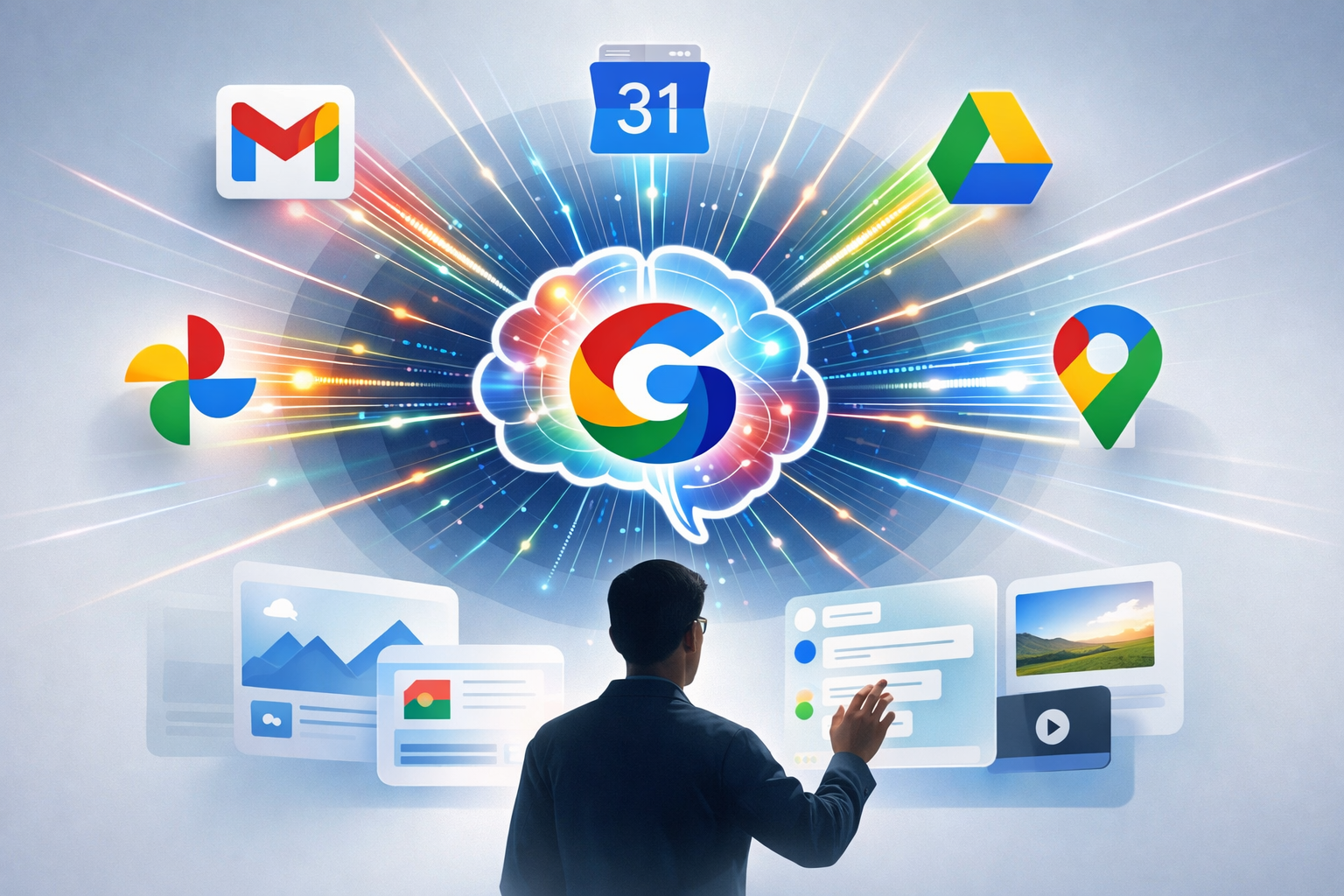
The Gemini Personal Intelligence feature transforms Google's AI from a generic chatbot into a personalized business assistant. Think of it as the difference between asking a stranger for directions versus asking someone who knows your neighborhood, your schedule, and your preferred routes.
Here's what changed: Traditional AI assistants treat every conversation as brand new. Personal Intelligence gives Gemini access to your Google ecosystem—Gmail, Calendar, Drive, Photos, and more—so it understands your context before you even finish typing your question.
How It Works Behind the Scenes
Personal Intelligence creates what Google calls “memory layers” around your data. When you ask Gemini to “draft a follow-up email for that client meeting,” it can:
- Check your Calendar to identify which meeting you mean
- Review your Gmail to understand the conversation history
- Access your Drive to reference any shared documents
- Apply your writing style based on previous emails
The system doesn't just store facts about you. It learns patterns in how you work, communicate, and organize information.
The Business Impact
Small business owners report saving 2-3 hours per week on routine tasks once Personal Intelligence learns their workflows. Content creators cut research time in half. Consultants automate client communication without losing the personal touch.
Real world example: A marketing consultant used to spend 45 minutes each Monday planning content for the week. Now she asks Gemini: “Review my client projects and suggest this week's content topics.” The AI checks her Drive for client briefs, reviews her Calendar for deadlines, and suggests relevant topics in 3 minutes.
What the Gemini Personal Intelligence Feature Can Do Right Now
Personal Intelligence handles specific business tasks that used to require manual work across multiple apps. Start with one goal rather than trying everything at once.
Email and Communication
Smart Email Drafting: Gemini writes emails that match your tone and include relevant context from previous conversations. It can reference attachments, meeting notes, and project details automatically.
Quick Response Generation: For busy professionals drowning in email, Personal Intelligence suggests responses based on your typical reply patterns and the sender's history with you.
Meeting Follow-ups: After client calls, Gemini can draft summary emails that reference your Calendar notes, shared documents, and action items discussed.
Content Creation and Research
Document Intelligence: Ask Gemini to find information across all your Google Docs, Sheets, and Slides. It searches content, not just file names, and can combine insights from multiple sources.
Content Planning: The AI reviews your existing content in Drive, analyzes performance data if connected to Analytics, and suggests new topics that align with your business goals.
Template Creation: Personal Intelligence learns from your best-performing emails, proposals, and presentations to help create templates for future use.
Schedule and Task Management
Smart Scheduling: Gemini suggests meeting times by checking all attendees' calendars, considering your preferences for meeting-free focus time, and accounting for time zones.
Project Coordination: The AI tracks project status across emails, Drive files, and Calendar events to provide updates and identify bottlenecks.
Travel Planning: For business trips, Gemini coordinates flight details from Gmail, hotel bookings, and meeting schedules to create comprehensive itineraries.
Data Organization and Analysis
File Management: Personal Intelligence can organize your Drive by project, client, or date. It understands file relationships and can suggest folder structures.
Expense Tracking: The AI finds receipts in Gmail and Photos, extracts amounts and categories, and can populate expense reports or spreadsheets.
Performance Insights: Gemini analyzes patterns in your work—when you're most productive, which clients require more time, or what content gets the best response.
What Data It Can Use, and What You Control
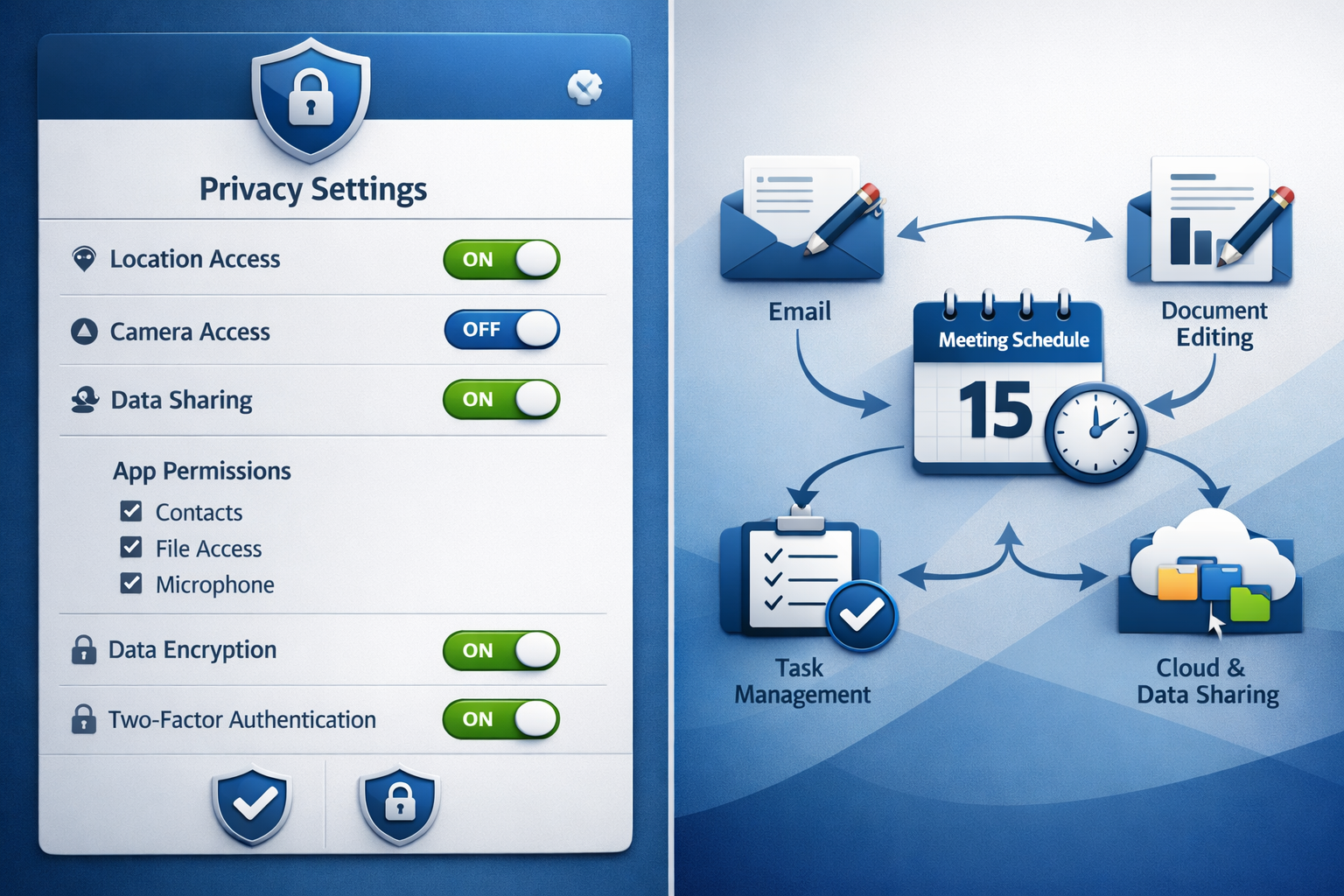
Privacy comes first with the Gemini Personal Intelligence feature. Google designed granular controls so you choose exactly which information Gemini can access and when.
Available Data Sources
Personal Intelligence can connect to these Google services:
| Service | What Gemini Accesses | Business Use Cases |
|---|---|---|
| Gmail | Email content, attachments, contacts | Client communication, lead tracking |
| Calendar | Events, meeting notes, attendee lists | Scheduling, project timelines |
| Drive | Documents, spreadsheets, presentations | Content research, file organization |
| Photos | Images, receipts, business cards | Expense tracking, contact management |
| Maps | Location history, saved places | Travel planning, client visit logs |
| YouTube | Watch history, preferences | Content research, competitor analysis |
Granular Privacy Controls
App-Level Permissions: Turn Personal Intelligence on or off for each Google service individually. Many business owners start with just Gmail and Calendar.
Data Type Filtering: Within each app, choose specific data types. For example, allow Calendar access for scheduling but restrict personal events.
Temporary Access: Grant one-time permissions for specific tasks. Useful when you need Gemini to analyze a particular project without ongoing access.
Conversation History: Control whether Gemini remembers previous conversations or treats each interaction as independent.
What Stays Private
Personal Intelligence operates under strict limitations:
- No human review of your personal data by Google employees
- Local processing for sensitive information when possible
- Automatic deletion of conversation history after your chosen timeframe
- No advertising use of Personal Intelligence data
- Enterprise-grade encryption for all data in transit and at rest
Setting Boundaries
Business vs. Personal: Create separate Google accounts for business and personal use. Connect Personal Intelligence only to your business account.
Client Confidentiality: For consultants and service providers, review client contracts before enabling access to shared documents or communications.
Compliance Requirements: Industries with strict data regulations (healthcare, finance, legal) should consult compliance teams before activation.
How to Turn On the Gemini Personal Intelligence Feature and Connect Apps
Do this first: Activation takes about 10 minutes and requires a Google One AI Premium subscription ($19.99/month as of 2026).
Step-by-Step Activation
Step 1: Verify Your Subscription
- Open gemini.google.com
- Sign in with your Google account
- Confirm you have Google One AI Premium (upgrade if needed)
Step 2: Enable Personal Intelligence
- Click the settings gear icon in Gemini
- Select “Extensions & Personal Intelligence”
- Toggle “Personal Intelligence” to ON
- Review and accept the privacy terms
Step 3: Connect Your First App
Start with Gmail for immediate value:
- In the Extensions section, find “Gmail”
- Click “Connect”
- Choose permission level: “Read only” or “Read and compose”
- Select “Allow” to confirm
Step 4: Test the Connection
Use this simple test prompt:
"Show me my most recent emails from this week and summarize the main topics."
If Personal Intelligence is working, Gemini will display actual emails and provide relevant summaries.
Connecting Additional Apps
Calendar Integration (recommended second):
- Return to Extensions settings
- Enable “Google Calendar”
- Choose access level: “View events” or “View and create events”
- Test with: “What meetings do I have tomorrow?”
Drive Connection (high value for content creators):
- Enable “Google Drive” in Extensions
- Select file types: Documents, Sheets, Slides, or all
- Test with: “Find documents about [your main business topic]”
Photos for Business (useful for receipts and business cards):
- Enable “Google Photos”
- Limit to specific albums if desired
- Test with: “Find receipt photos from last month”
Quick Setup Checklist
✅ Google One AI Premium subscription active
✅ Personal Intelligence enabled in Gemini settings
✅ Gmail connected and tested
✅ Calendar connected for scheduling help
✅ Drive connected for document access
✅ Privacy settings reviewed and customized
✅ First test prompts successful

Troubleshooting Common Issues
“Personal Intelligence not available”: Ensure you're using the correct Google account with an active AI Premium subscription.
“No emails found”: Check Gmail connection permissions and verify you selected “Read” access level.
“Calendar events not showing”: Calendar sync can take 15-30 minutes after initial connection.
Practical Use Cases for Business Owners and Creators
The Gemini Personal Intelligence feature excels at specific workflows that combine multiple data sources. Here's the plan for implementing AI assistance that actually saves time.
For Solopreneurs and Consultants
Client Communication Workflow:
Personal Intelligence transforms client management by connecting email history, project files, and meeting schedules.
Real world example: A business coach manages 15 clients with weekly check-ins. Before Personal Intelligence, preparing for each call meant reviewing email threads, finding the latest coaching notes in Drive, and checking progress on action items. Now she uses this workflow:
- Monday morning prompt: “Review this week's client meetings and prepare talking points for each based on our recent emails and their coaching files.”
- Pre-meeting prompt: “Summarize [Client Name]'s progress since our last meeting using emails and shared documents.”
- Post-meeting prompt: “Draft follow-up emails for today's coaching calls including action items and next steps.”
Result: Prep time dropped from 30 minutes per client to 5 minutes. Client satisfaction increased because meetings felt more personalized and focused.
Proposal and Contract Management:
- Prompt: “Find all proposal templates in my Drive and create a new one for [specific industry] based on successful past proposals.”
- Follow-up: “Review emails with [prospect name] and customize this proposal based on their stated needs and budget.”
For Content Creators and Marketers
Content Planning and Research:
Personal Intelligence connects your content library, performance data, and audience research for smarter content decisions.
Weekly Content Planning Workflow:
"Review my content calendar, recent blog posts in Drive, and email engagement data to suggest 5 content topics for next week that align with my audience interests."
Content Repurposing:
"Find my best-performing blog posts from the last 6 months and suggest how to repurpose each into social media content, email newsletters, and video scripts."
Audience Research:
"Analyze questions and comments from my recent emails and social media to identify common pain points I should address in upcoming content."
For Small Business Owners
Customer Service Automation:
Personal Intelligence helps maintain personal touch while scaling customer communication.
Email Response Workflow:
- Morning routine: “Review overnight customer emails and draft responses based on our standard policies and previous conversations with each customer.”
- Complex issues: “Find similar customer issues from past emails and suggest solutions based on what worked before.”
- Follow-up tracking: “Identify customer emails from last week that need follow-up and draft appropriate check-in messages.”
Inventory and Operations:
- Supplier communication: “Review emails from suppliers and create a summary of price changes, delivery updates, and new product offerings.”
- Expense tracking: “Find all receipt photos and supplier invoices from this month and organize them by category for bookkeeping.”
For Coaches and Course Creators
Student Support and Engagement:
"Review emails from course students this week and identify common questions that should be addressed in a FAQ update or bonus lesson."
Course Content Development:
"Analyze feedback from my course materials in Drive and student emails to suggest improvements for the next course launch."
Community Management:
"Draft personalized welcome emails for new students based on their enrollment forms and goals they shared during signup."
Time-Saving Benchmarks
Based on early adopter feedback, here's what to expect:
- Email management: 60-70% reduction in time spent on routine responses
- Content research: 50% faster topic ideation and background research
- Meeting preparation: 75% less time gathering context and materials
- Document organization: 80% faster file finding and project coordination
- Client communication: 40% improvement in response time with better personalization
Quick win strategy: Start with email automation for one specific type of message (client check-ins, customer support, or content promotion). Build momentum with this single workflow before expanding to other use cases.
Limits, Risks, and Smart Guardrails
Keep it simple by understanding what the Gemini Personal Intelligence feature can't do and setting up smart boundaries from day one.
Current Technical Limitations
Data Freshness: Personal Intelligence updates every 15-30 minutes, not in real-time. Don't rely on it for urgent, just-received emails or last-minute calendar changes.
File Size Restrictions: Large files (over 25MB) in Drive may not be fully processed. Complex spreadsheets with extensive formulas might not be analyzed completely.
Language Support: Works best with English content. Mixed-language documents or non-English emails may produce incomplete results.
Third-Party Apps: Only connects to Google services. No integration with Slack, Microsoft Office, Dropbox, or other business tools you might use daily.
Privacy and Security Considerations
Data Residency: Your information stays within Google's infrastructure but may be processed across different data centers globally. Check if your business has geographic data requirements.
Shared Documents: Personal Intelligence can access documents shared with you, potentially including confidential client information. Test and adjust permissions carefully.
Account Security: If your Google account is compromised, Personal Intelligence gives attackers broader access to your information. Enable two-factor authentication and use strong passwords.
Business Continuity: Heavy reliance on Personal Intelligence creates dependency on Google services. Have backup workflows for critical business functions.
Smart Guardrails to Implement
Start with Read-Only Access: Begin with view-only permissions for sensitive apps like Gmail and Drive. Upgrade to full access only after you're comfortable with how Personal Intelligence handles your data.
Create Separate Business Accounts: Use dedicated Google Workspace accounts for business and keep personal Google accounts separate. This prevents mixing personal and professional data.
Regular Permission Audits: Monthly, review which apps Personal Intelligence can access and disable any you're not actively using.
Client Data Protocols: For service providers, establish clear policies:
- Get written consent before including client communications in Personal Intelligence
- Use separate Google accounts for different clients when handling sensitive information
- Document which AI tools you use in your privacy policy
Risk Mitigation Strategies
Backup Critical Workflows: Don't make Personal Intelligence your only method for important business processes. Maintain manual alternatives for:
- Client communication during service outages
- Document access when traveling with limited internet
- Calendar management for time-sensitive meetings
Data Export Planning: Regularly export important emails, documents, and calendar data. Google Takeout provides comprehensive data export options.
Error Checking Protocols: Personal Intelligence makes mistakes. Always review:
- Email drafts before sending, especially to important clients
- Calendar invites for accuracy in times, dates, and attendees
- Document summaries for completeness and context
Professional Liability: For consultants and service providers, check if your professional liability insurance covers AI-assisted work. Some policies may require disclosure of AI tool usage.
When Not to Use Personal Intelligence
Highly Regulated Industries: Healthcare, finance, and legal professionals should consult compliance teams before enabling access to client data.
Confidential Projects: Disable Personal Intelligence for specific projects involving NDAs, mergers, or sensitive business negotiations.
Personal Emergencies: Don't rely on AI for urgent personal matters where human judgment is critical.
Creative Work Requiring Originality: While Personal Intelligence helps with research and organization, ensure final creative output reflects your unique voice and perspective.
Setting Usage Boundaries
Time Limits: Avoid spending more time crafting perfect AI prompts than doing the work manually. If a prompt takes more than 2-3 attempts, switch to traditional methods.
Quality Standards: Use Personal Intelligence for first drafts and research, but apply human editing and fact-checking for all client-facing work.
Dependency Awareness: Regularly complete tasks manually to maintain your skills and ensure you can work effectively without AI assistance.
Quick Prompts You Can Copy and Paste
Use these prompts to get immediate value from the Gemini Personal Intelligence feature. Copy and paste them directly, then customize with your specific details.
Email and Communication Prompts
Client Follow-Up After Meetings:
"Draft a follow-up email for my meeting with [Client Name] today. Include a summary of what we discussed, the action items we agreed on, and next steps. Reference any documents we shared and suggest a timeline for the next check-in."
Weekly Client Update:
"Create a professional update email for [Client Name] summarizing progress on their project this week. Review our recent emails and shared documents to highlight completed tasks, upcoming milestones, and any support they need from their team."
Customer Service Response:
"Help me respond to this customer email: [paste email content]. Use our previous email history with this customer and our standard policies to draft a helpful, professional response that addresses their concern and maintains our brand voice."
Networking Follow-Up:
"I met [Name] at [Event] yesterday. Draft a LinkedIn connection request and follow-up email referencing our conversation about [topic discussed]. Make it personal but professional, and suggest a specific way we might collaborate."
Content Creation and Research Prompts
Blog Post Research:
"I want to write about [topic]. Search my existing content in Drive to see what I've already covered, then suggest 5 unique angles I haven't explored yet. Include potential headlines and key points for each angle."
Social Media Content Planning:
"Review my recent blog posts and email newsletters to create 10 social media post ideas for this week. Make them engaging and include relevant hashtags. Vary the format between tips, questions, and behind-the-scenes content."
Email Newsletter Ideas:
"Analyze my most opened emails from the last 3 months and suggest 5 newsletter topics that would interest my audience. Include subject line suggestions and main talking points for each topic."
Content Repurposing:
"Take my blog post about [specific topic] and suggest how to repurpose it into: 1) A series of social media posts, 2) An email newsletter, 3) A short video script, and 4) A podcast episode outline."
Business Operations and Planning Prompts
Weekly Planning:
"Review my calendar for next week and my recent emails to identify priorities and potential conflicts. Suggest how to optimize my schedule for maximum productivity and highlight any preparation needed for upcoming meetings."
Project Status Update:
"Give me a status update on the [Project Name] by reviewing related emails, documents in Drive, and calendar events. Identify what's completed, what's in progress, any roadblocks, and suggested next steps."
Expense Organization:
"Find all business receipts and expense-related emails from this month. Organize them by category (meals, travel, supplies, etc.) and create a summary with dates, amounts, and business purposes for each expense."
Client Onboarding Checklist:
"I'm starting work with a new client [Client Name]. Based on my previous client onboarding processes in emails and Drive, create a customized checklist of tasks, documents needed, and timeline for getting them set up successfully."
Meeting and Event Management Prompts
Meeting Preparation:
"I have a meeting with [Name/Company] tomorrow about [topic]. Review our email history, any shared documents, and my calendar notes to prepare talking points, questions to ask, and materials I should bring or share."
Event Planning:
"Help me plan [event type] for [date]. Check my calendar for conflicts, review similar events I've organized before, and create a timeline with tasks, deadlines, and resources needed."
Travel Coordination:
"I'm traveling to [location] next week for business. Review my emails for flight details, hotel bookings, and meeting schedules. Create a comprehensive itinerary with addresses, contact information, and travel times between appointments."
Customization Tips for Better Results
Be Specific with Context: Instead of “draft an email,” use “draft a professional follow-up email to a potential client who expressed interest in my consulting services during our 30-minute discovery call yesterday.”
Reference Specific Timeframes: “Review emails from the last 2 weeks” works better than “review recent emails.”
Include Your Preferences: Add phrases like “use my typical professional tone” or “keep it under 200 words” to get results that match your style.
Specify Output Format: Request “create a bulleted list,” “write in paragraph form,” or “organize as a numbered checklist” for the format you need.
Name Your Templates: After getting good results, save successful prompts in a document titled “My AI Prompts” for quick reference and make it repeatable.

Summary and Next Steps
The Gemini Personal Intelligence feature transforms how small business owners, content creators, and busy professionals handle daily tasks by connecting AI assistance directly to their Google data ecosystem. Instead of generic responses, you get personalized help that understands your business context, communication style, and workflow preferences.
What You've Learned
Personal Intelligence works differently than traditional AI chatbots. It accesses your Gmail, Calendar, Drive, and other Google services to provide contextual assistance that saves 2-3 hours weekly on routine tasks.
Privacy stays in your control through granular permissions that let you choose exactly which data Gemini can access. You can start with read-only access to one app and expand gradually as you build confidence.
Business applications are immediate and practical. Email automation, content research, meeting preparation, and project coordination become significantly faster when AI understands your existing information and preferences.
Setup requires 10 minutes with a Google One AI Premium subscription. Start with Gmail and Calendar connections for the highest immediate value.
Ready-to-use prompts eliminate the learning curve. Copy, paste, and customize the provided prompts to get results this week without becoming an AI expert.
Your Clear Next Step
Do this first: If you don't have Google One AI Premium, start a trial at one.google.com. The $19.99/month investment pays for itself quickly through time savings.
This week's action plan:
- Day 1: Subscribe to Google One AI Premium and enable Personal Intelligence
- Day 2: Connect Gmail and test with the email summary prompt
- Day 3: Add Calendar integration and try meeting preparation prompts
- Day 4: Connect Google Drive and test document research capabilities
- Day 5: Choose 3 copy-and-paste prompts from this guide and use them for real business tasks
Building Long-Term Success
Start with one goal rather than trying to automate everything immediately. Pick your biggest time drain—usually email management or content research—and focus on that workflow first.
Build momentum by tracking time saved. Note how long tasks took before and after using Personal Intelligence. Most users see 50-70% time reduction within the first month.
Test and adjust your approach based on results. If prompts don't give useful output, try being more specific about context, timeframes, or desired format.
One tool at a time prevents overwhelm. Master Personal Intelligence with your Google ecosystem before exploring other AI business tools.
Advanced Opportunities
Once comfortable with basic features, consider these next steps:
Integration with other business tools through Google Workspace APIs and third-party connectors
Team collaboration by sharing effective prompts and workflows with employees or partners
Custom automation using Google Apps Script to trigger Personal Intelligence for recurring tasks
Performance optimization by analyzing which AI-assisted tasks provide the highest ROI for your business
Getting Support
Google's Help Center provides detailed documentation and troubleshooting for Personal Intelligence features.
Business communities like Hampton Network offer practical guidance from other entrepreneurs using AI tools effectively.
Professional development through AI literacy courses helps maximize your investment in these productivity tools.
The Gemini Personal Intelligence feature represents a significant shift toward AI that actually understands your business context. Results depend on effort—the more thoughtfully you implement these tools, the greater your productivity gains.
Your next action: Open gemini.google.com and begin your Personal Intelligence setup today. Save time fast by starting with email automation, then expand to other workflows as you build confidence with AI-assisted productivity.
DISCLOSURE: THIS POST MAY CONTAIN AFFILIATE LINKS, MEANING I GET A COMMISSION IF YOU DECIDE TO MAKE A PURCHASE THROUGH MY LINKS (AT NO COST TO YOU)